

It's 7am on a Monday. I'm halfway through my coffee when the Teams message comes in: "Hey, Jamie starts today, can you get her set up?"
First I'd heard of it.
Before I built any of this automation stack, that message meant two hours of scrambling, creating the account, hunting down which licenses she needed, figuring out which security groups to add her to, provisioning the mailbox, sending a welcome email, and somehow also answering the helpdesk tickets that had piled up while I was doing all of that manually. By 10am I'd done exactly one thing: onboarded one person.
Now that message means I open my onboarding form, confirm the pre-filled information HR submitted, and go get a second cup of coffee. The workflow handles the rest in about 10 minutes.
That's what this post is about, the actual automation stack I've built and run at a 250-person architecture firm, where a small IT team covers everything for many teams of people. Not a 40-person team with a change management process and a ticketing SLA. A handful of people, wearing every hat and trying to juggle the mental bandwidth to be productive.
When You're the Helpdesk, the Sysadmin, and the Security Analyst
Here's the thing nobody tells you about being a small IT shop: it's not the volume of work that gets you. It's the context switching.
I can handle a busy day. What I can't handle well is being three steps into a security review when a "quick question" about a password reset pulls me completely out of it. Routine tasks aren't just time costs, they're attention costs. A 10-minute interruption in the middle of something complex might cost 30 minutes of actual productivity.
And in an SMB environment, the failure mode for a missed routine task lands differently than it does at a large enterprise. When a new hire shows up and can't log in, HR isn't opening a ticket, they're walking down the hall to find me. I found that out the hard way.
Jamie wasn't the first person to sit down at their desk and stare at a login screen that wouldn't accept their credentials. In that case, the license assignment had failed silently. No error, no alert, no notification. The account existed, the user looked provisioned, but something in the sequence had quietly not worked. I only knew because HR called me. That conversation is not one I wanted to have twice.
That's the real case for automation in an SMB context. It's not about replacing people, there's nobody to replace. It's about protecting your capacity for work that actually requires judgment, and making sure the routine stuff fails loudly instead of silently.
Here's what the starter kit in this post covers:
- Onboarding and offboarding: n8n + Graph API workflow, from form submission to fully provisioned user
- Sign-in log analysis: PowerShell pulling Entra risk signals and routing a structured summary to Teams every morning
- Self-service licensing: a form-triggered script that handles the "can you add this license to my account" ticket without me touching it
The Right Tool for the Job (And How They Work Together)
Before getting into the workflows, it's worth being clear about which tool does what, because the answer isn't "pick one and use it for everything."
PowerShell is the execution engine. When I need to call the Graph API, bulk-process a list of users, or do anything that requires real logic and full control over what's happening, PowerShell is where it lives. I use the Microsoft.Graph module for most things, though I'll drop down to raw REST calls when the module's abstraction gets in the way. It's free, it's flexible, and I already know it.
Power Automate is already in your M365 tenant, which makes it appealing for things a non-IT person needs to own, like an HR-triggered approval flow. Honest tradeoff: the licensing tiers get frustrating fast. Basic flows work fine in the standard plans, but the moment you need a premium connector (and you will), you're looking at ~$15/user/month for per-user premium licensing. Complex logic also becomes a nightmare of nested conditions. I use it where it makes sense and route around it where it doesn't.
n8n is the glue. It's a self-hostable visual workflow builder that handles webhooks, conditional logic, API calls, and integrations that Power Automate would charge you extra for. I run it self-hosted on a small Azure VM, that's about $10-15/month in compute. If you'd rather not manage the infra, n8n Cloud Starter runs around $20/month. Either way, no per-workflow fees, no "premium connector" gotchas.
How they coexist in practice: n8n orchestrates the overall flow, PowerShell does the heavy lifting against Microsoft APIs, and Power Automate handles the small number of M365-native flows where it's genuinely the right fit.
| Tool | Best For | Watch Out For |
|---|---|---|
| PowerShell | Graph API calls, bulk ops, full control | Scheduling and triggering requires extra setup |
| Power Automate | M365-native flows, HR-owned processes | Premium connectors add up fast; complex logic gets messy |
| n8n | Orchestration, webhooks, multi-system flows | Requires some setup; self-hosted means you own the maintenance |
One thing worth noting about how PowerShell fits into this: n8n isn't executing scripts directly. It triggers Azure Automation Runbooks, which run the PowerShell in my environment with the right credentials and network access, then pass the results back to n8n for routing, posting to Teams, sending emails, whatever the next step is. n8n handles the orchestration and the output; Azure Automation handles the execution. That separation matters, it means n8n never needs direct access to your tenant, and your scripts run with the same security context they'd have if you ran them manually.
From "Jamie Starts Today" to Done Before Your Coffee Cools
Onboarding is the perfect first automation project. It's repetitive, the steps are well-defined, and when it fails, everyone knows immediately. The failure is visible, it has a face attached to it, and you're the one who has to explain it.
The old process, written out honestly: get a message, create the Entra ID account, go find which license template applied to this role, assign it, remember which security groups to add, create the OneDrive/mailbox (which sometimes required waiting), draft a welcome email, post in the IT channel that it was done. Then find out two days later that the license had failed silently and the new hire had been logging in with degraded access since day one.
The n8n workflow looks like this:
- Trigger: Form submission from HR (Microsoft Forms or a simple webhook from whatever HR system you have, even a manual form works to start)
- Create user in Entra ID via Graph API POST to
/users - Assign license via Graph API PATCH to
/users/{id}/assignLicense - Add to security groups based on department/role field from the form
- Wait for mailbox provision (small delay node, then a confirmation check)
- Send welcome email with login instructions
- Post confirmation to the IT Teams channel with a summary of what was done
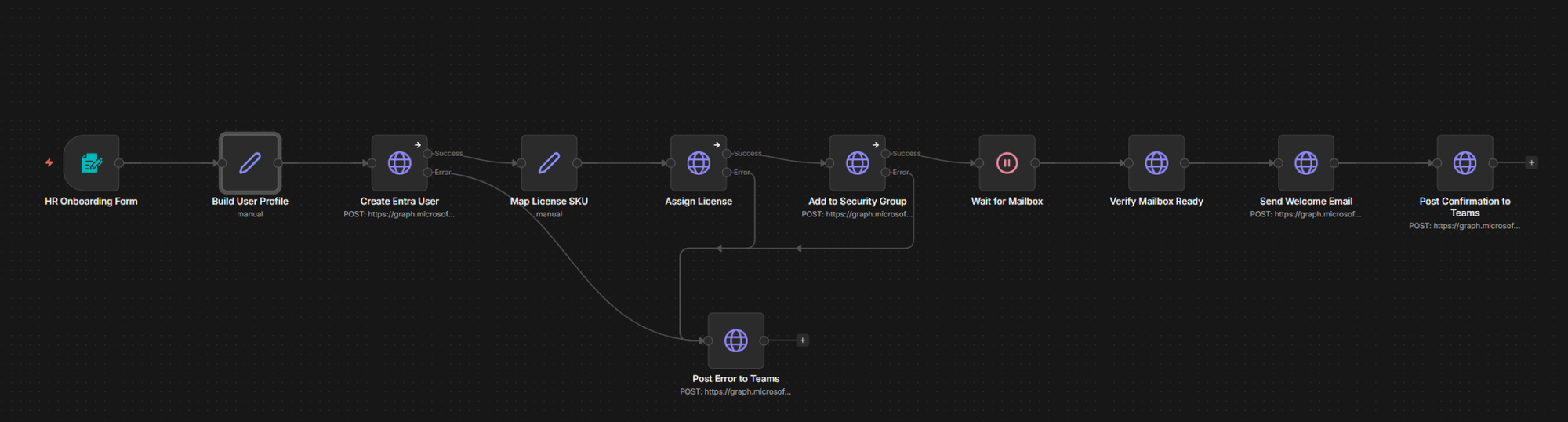
That error branch on step 3 is the part that matters most. Every step in this workflow has an error path that posts to Teams with the specific step that failed and the error message. No silent failures. If something goes wrong, I know within seconds, and I know exactly where.
That's the lesson from the HR phone call. The workflow itself is the easy part, the error handling is what makes it trustworthy.
The offboarding mirror covers: disable account, revoke all active sessions, strip licenses (with a 24-hour delay and a confirmation step before removal, you'd be surprised how often someone gets offboarded and then immediately re-added), queue a mailbox export, and notify the manager with a summary.
The full n8n workflow JSON for both onboarding and offboarding is in the starter kit download at the bottom of this post.
I Used to Review Entra Sign-In Logs by Hand. Never Again.
For a while, I spent about 20 minutes every morning doing what I can only describe as reading the Entra sign-in logs like a Victorian ledger. Scrolling, squinting, mentally filtering noise from actual signal. Trying to remember if that failed MFA from yesterday was the same user as today's suspicious location flag.
It was inconsistent. My brain filtered differently at 8am than it did on a distracted Tuesday afternoon. Things slipped through. Things also triggered false urgency. It wasn't a system — it was a habit that felt like a system.
Now a PowerShell script runs on a schedule, pulls risky sign-ins from the Graph API, filters them by actual risk signals, and posts a structured summary to a Teams channel. I get one card in the morning. If it's green, I move on. If there are flags, I know exactly what they are and who they involve.
Here's the actual PowerShell that runs inside the Runbook:
# Sign-In Risk Summary — pulls risky sign-ins from Entra via Graph API
# Posts formatted summary to n8n webhook → Teams adaptive card
# Requires: AuditLog.Read.All, IdentityRiskyUser.Read.All, Directory.Read.All
# App registration in Entra — service principal auth, no interactive login

param(
    [string]$TenantId     = $env:GRAPH_TENANT_ID,
    [string]$ClientId     = $env:GRAPH_CLIENT_ID,
    [string]$ClientSecret = $env:GRAPH_CLIENT_SECRET,
    [string]$WebhookUrl   = $env:N8N_SIGNIN_WEBHOOK
)

# --- Authenticate ---
$tokenBody = @{
    grant_type    = "client_credentials"
    scope         = "https://graph.microsoft.com/.default"
    client_id     = $ClientId
    client_secret = $ClientSecret
}
$tokenResponse = Invoke-RestMethod `
    -Uri "https://login.microsoftonline.com/$TenantId/oauth2/v2.0/token" `
    -Method POST -Body $tokenBody
$headers = @{ Authorization = "Bearer $($tokenResponse.access_token)" }

# --- Pull risky users (confirmed + atRisk) ---
$riskyUsersUri = "https://graph.microsoft.com/v1.0/identityProtection/riskyUsers" +
                 "?`$filter=riskState eq 'atRisk' or riskState eq 'confirmedCompromised'" +
                 "&`$select=userDisplayName,userPrincipalName,riskLevel,riskState,riskLastUpdatedDateTime"
$riskyUsers = (Invoke-RestMethod -Uri $riskyUsersUri -Headers $headers).value

# --- Pull recent sign-ins with risk or legacy auth ---
$since = (Get-Date).AddHours(-24).ToString("yyyy-MM-ddTHH:mm:ssZ")
$signInsUri = "https://graph.microsoft.com/v1.0/auditLogs/signIns" +
              "?`$filter=createdDateTime ge $since" +
              " and (riskLevelDuringSignIn ne 'none' or clientAppUsed eq 'Other clients')" +
              "&`$select=userDisplayName,userPrincipalName,ipAddress,location," +
              "riskLevelDuringSignIn,clientAppUsed,status,createdDateTime" +
              "&`$top=50"
$riskySignIns = (Invoke-RestMethod -Uri $signInsUri -Headers $headers).value

# --- Filter: MFA failures in the last 24 hours, more than threshold ---
$mfaFailures = $riskySignIns | Where-Object {
    $_.status.failureReason -like "*MFA*" -or
    $_.status.errorCode -in @(50074, 50076, 500121)
}

# --- Build summary payload ---
$summary = @{
    riskyUserCount   = $riskyUsers.Count
    riskyUsers       = $riskyUsers | Select-Object userDisplayName, riskLevel, riskState
    flaggedSignIns   = $riskySignIns.Count
    mfaFailures      = $mfaFailures.Count
    legacyAuthCount  = ($riskySignIns | Where-Object { $_.clientAppUsed -eq "Other clients" }).Count
    generatedAt      = (Get-Date -Format "yyyy-MM-dd HH:mm") + " UTC"
}

# --- POST to n8n webhook (n8n formats the Teams adaptive card) ---
Invoke-RestMethod -Uri $WebhookUrl -Method POST `
    -ContentType "application/json" `
    -Body ($summary | ConvertTo-Json -Depth 5)

Write-Host "Sign-in risk summary posted. Risky users: $($summary.riskyUserCount), Flagged sign-ins: $($summary.flaggedSignIns)"
The n8n webhook receives that payload and formats it into a Teams adaptive card: color-coded, structured, readable in 30 seconds. Full Graph API permissions list for this script is in the starter kit.
I run this on our automation server directly via a scheduled task, but any VM or workstation with Entra access and Task Scheduler will work.
Ten Minutes a Ticket, Four Times a Month. No More.
The Visio ticket. Arrives 3-4 times a month without fail. Someone in the architecture team needs Visio, their manager approved it verbally, and they've opened a ticket asking me to add it.
Ten minutes each time: find the request, confirm their role, verify we have an available license, assign it in the admin center, reply to close the ticket. Forty minutes a month on something that should take 10 seconds.
It's not a lot of time in isolation. But it's the cognitive overhead that compounds, context switching out of whatever I was doing, context switching back. Four times a month, every month.
The replacement is a simple form (Microsoft Forms works fine) that feeds a PowerShell script via an n8n webhook. The script checks whether the submitting user is a member of the Entra group that qualifies for Visio (we use role-based groups tied to job function), assigns the license if they're eligible, and sends a confirmation email. If they don't qualify, they get a helpful message explaining why and who to talk to. No ticket. No IT involvement.
# Role-Based License Assignment — self-service via form + n8n webhook
# Checks Entra group membership before assigning license SKU
# ALWAYS run with -WhatIf first. Seriously.

param(
    [string]$TenantId        = $env:GRAPH_TENANT_ID,
    [string]$ClientId        = $env:GRAPH_CLIENT_ID,
    [string]$ClientSecret    = $env:GRAPH_CLIENT_SECRET,
    [string]$UserUPN,                          # passed from n8n webhook payload
    [string]$RequestedSkuId  = "c2273bd0-dff7-4215-9ef5-2c7bcfb06425",  # Visio Plan 2 SKU
    [string]$EligibilityGroupId,               # Entra group ID for eligible roles
    [switch]$WhatIf
)

# --- Auth (same pattern as sign-in script) ---
$tokenBody = @{
    grant_type    = "client_credentials"
    scope         = "https://graph.microsoft.com/.default"
    client_id     = $ClientId
    client_secret = $ClientSecret
}
$token = (Invoke-RestMethod `
    -Uri "https://login.microsoftonline.com/$TenantId/oauth2/v2.0/token" `
    -Method POST -Body $tokenBody).access_token
$headers = @{ Authorization = "Bearer $token" }

# --- Get user object ---
$user = Invoke-RestMethod `
    -Uri "https://graph.microsoft.com/v1.0/users/$UserUPN" `
    -Headers $headers
$userId = $user.id

# --- Check group membership ---
$memberCheckBody = @{ groupIds = @($EligibilityGroupId) } | ConvertTo-Json
$memberCheck = Invoke-RestMethod `
    -Uri "https://graph.microsoft.com/v1.0/users/$userId/checkMemberGroups" `
    -Method POST -Headers $headers `
    -ContentType "application/json" -Body $memberCheckBody

$isEligible = $memberCheck.value -contains $EligibilityGroupId

if (-not $isEligible) {
    Write-Host "INELIGIBLE: $UserUPN is not in the eligible group. No license assigned."
    # n8n handles sending the rejection notification back to the user
    exit 1
}

# --- Assign license ---
$licenseBody = @{
    addLicenses    = @(@{ skuId = $RequestedSkuId })
    removeLicenses = @()
} | ConvertTo-Json -Depth 3

if ($WhatIf) {
    Write-Host "WHATIF: Would assign SKU $RequestedSkuId to $UserUPN — no changes made."
} else {
    Invoke-RestMethod `
        -Uri "https://graph.microsoft.com/v1.0/users/$userId/assignLicense" `
        -Method POST -Headers $headers `
        -ContentType "application/json" -Body $licenseBody
    Write-Host "SUCCESS: License $RequestedSkuId assigned to $UserUPN"
}
I want to draw your attention to the -WhatIf flag in that script. It's not optional, and I'll explain exactly why in the next section.
Don't Automate a Broken Process. You'll Just Break It Faster.
Here's something I think about a lot: automation doesn't fix bad judgment. It scales it.
I call this the toaster rule: a good toaster doesn't make bad bread good, it just gives you bad toast faster. If the manual process is broken or undefined, automating it doesn't solve the problem, it just produces bad outcomes at scale. Fix the process first. Document it. Make sure it works manually before you teach a script to do it.
The -WhatIf flag in that license script isn't a suggestion for beginners. It exists because I nearly removed licenses from an entire department.
I had a license cleanup script, designed to find users with assigned Visio licenses who were no longer in the eligible group. Good intent, necessary housekeeping. I ran it in what I thought was a targeted scope. The group ID I'd passed in was... not the group I thought it was. The script queued up removals for 34 users across a full department.
What stopped it was a confirmation step I'd built in: before executing any removals, the script printed the full list of affected users and asked for explicit confirmation. I saw the list, immediately recognized names that shouldn't be there, and killed it.
I had that confirmation step because, two weeks earlier, a test run of a similar script had blown up in a dev environment in a comparable way. I wasn't being principled, I was being cautious after a scare. That's not a great system, but it worked.
The lesson isn't "be careful." The lesson is: build the guard rails into the script itself, not into your own due diligence. Your diligence will have a bad day. The script shouldn't.
Before you automate anything, run through this list:
- Is the manual process actually defined? If you can't write down every step, you can't automate it yet.
- What does failure look like, and will you know? Silent failures are worse than no automation.
- Does a human need to be in the loop for edge cases? Offboarding especially, there are situations where the right answer isn't obvious.
- Does this happen often enough to be worth it? If a task happens less than once a month and varies every time, document it first. Automate later.
One more anti-pattern worth calling out: over-automating user-facing decisions. A self-service license request is fine to automate. An offboarding with a complex reporting structure and shared mailbox dependencies probably isn't, not entirely, anyway. Build in a human checkpoint for anything where the edge cases could cause real problems.
The Real Cost Breakdown for a Small IT Team
I'm not going to tell you this is free. But it's close.
| Tool | Monthly Cost | Notes |
|---|---|---|
| n8n (self-hosted) | ~$10–15 | Small Azure VM or existing server compute |
| n8n Cloud Starter | ~$20 | If you'd rather not manage infra |
| PowerShell + Graph API | $0 | App registration in Entra is free; Microsoft.Graph module is free |
| Power Automate (basic) | $0 | Included in most M365 Business plans |
| Power Automate (premium) | ~$15/user | Avoid if you can route around premium connectors |
Total incremental cost to build everything described in this post: $0 to $20/month, depending on whether you self-host n8n or use their cloud tier.
Time investment is more honest: the onboarding workflow took a full day to build and test properly, not because it's complicated, but because testing onboarding/offboarding automation responsibly takes time. The sign-in log script took a few evenings. These aren't weekend projects in the sense that you'll be done by Sunday. They're measured in focused hours over a couple of weeks.
The ROI math isn't hard though. Conservatively, the three workflows in this post save me 3-4 hours a week, onboarding scrambles, manual log reviews, and the Visio ticket queue, mostly. At an IT Manager's loaded hourly rate, that pays back in the first month. After that it's just time I have back.
What's in the Starter Kit (And What's Coming Next)
Everything in this post is running in production at a real firm, built over time, usually because something had already gone wrong once. It's not a consultant's roadmap, it's a practitioner's starting point.
The free starter kit includes:
- PowerShell script templates: the sign-in log pull, the license assignment script, and the core onboarding steps, with comments explaining each section
- n8n workflow JSON exports: import-ready files for the onboarding flow, offboarding flow, and sign-in alert routing
- Graph API permissions reference card: which permissions each workflow actually needs, scoped to least-privilege
I post when I've built something worth writing about, not on a schedule. If you want to know when the next one drops, the best way is the newsletter below. No cadence commitments, no filler content, just posts when there's something real to share.
Next up: building a full Entra conditional access audit with PowerShell that produces output you can actually show to a non-technical stakeholder, no scrolling through policy JSON, just a readable report that answers "are we covered?"
— Mason Witt, IT Manager, definitely still drinking coffee at 7am on Mondays. Just less frantically.